
You already know how javascript miners get to the pages of Internet resources. Now let’s try to figure out how to find out which of the many open tabs is using your resources to mine cryptocurrency.
As we said earlier, the main symptom of a gray miner appearing on your device is its slowdown and obvious overheating even in the absence of any payload. The first step is to find what process is loading the system and the simplest option is the Task Manager. In most situations, it will show which process is consuming your resources.
So, Task Manager showed that your browser is using too many resources. This suggests that some open page contains either a javascript miner, or simply suboptimal javascript or an error in it, leading to increased load on the system. In any case, such a page must be detected and script execution stopped. If the problem constantly appears in different browsers, it is good practice to inform the site owner about this problem.
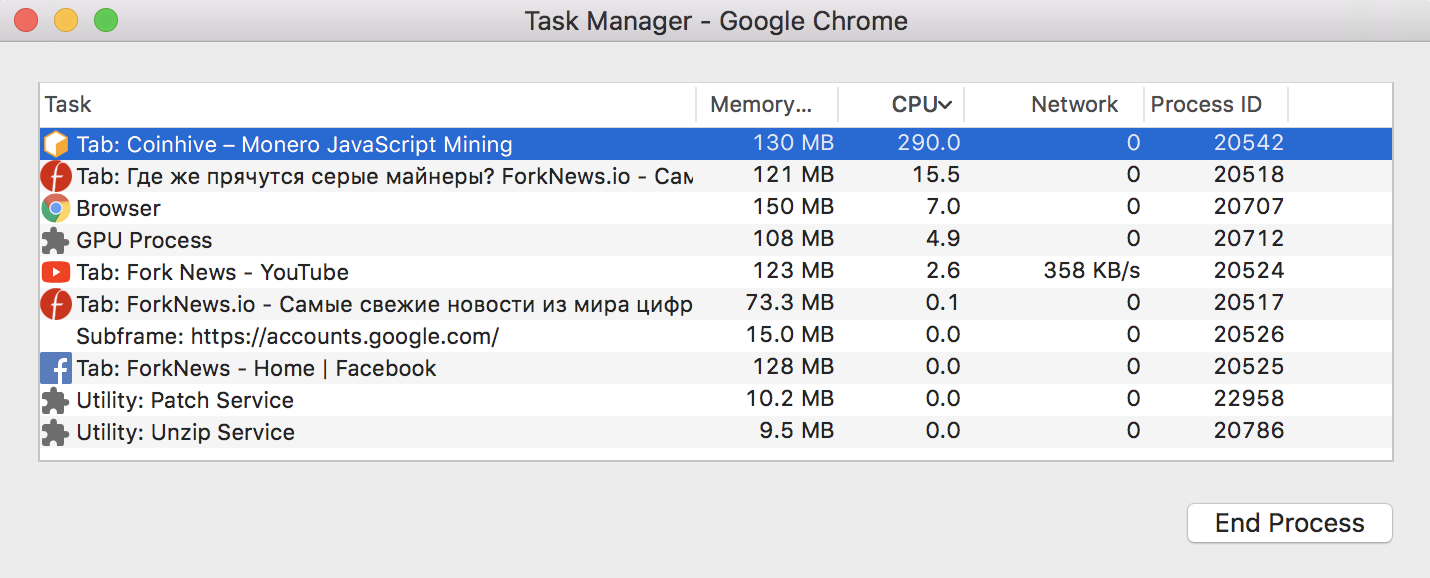
The popular browsers Google Chrome and Opera allow you to find a specific gluttonous page or extension. To do this, they have their own Task Manager, which displays the resources (CPU load, memory occupied, amount of network traffic) used by each page, frame or extension individually. To open the task manager in Chrome under Mac OS, open the “Window” menu, and in it select “Task Manager”. In the Windows version of Google Chrome, “Task Manager” is located in the “Additional tools” menu.
With Opera under Mac Os, everything is a little more complicated: first you need to open access to the “Developers” menu, for which open the “View” menu, and in it select the bottom item “Show Developers Menu”. A new submenu (“Developer”) will appear in the menu. To access the Task Manager, simply use the appropriate item in the “Developer” menu. In Opera for Windows, the Developer menu is open by default, so you can immediately call the Task Manager from this menu.
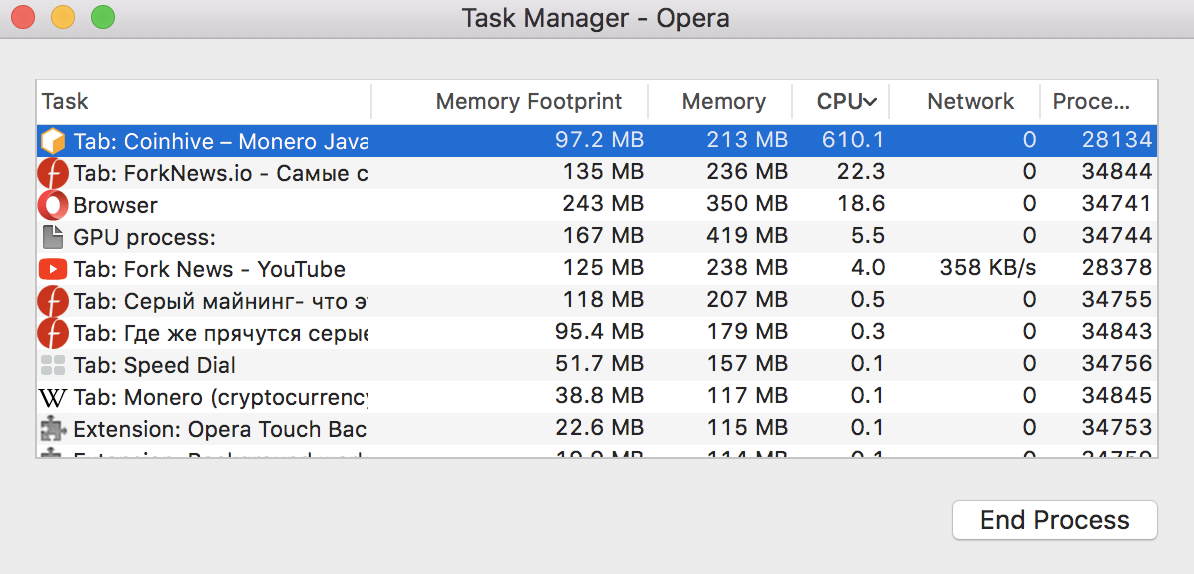
Now that you have found a page or process that is interfering with your browser, simply highlight the required line and click the “End Process” button.. In the same way, you can terminate the selected extension. After the extension is finished working, you can remove it and then restart the browser. Now you know how to get rid of the simplest javascript miner without using any additional software.

You May Also Like
Hackers infected several Indian government websites
Andhra Pradesh Municipal Administration, Tirupati Municipal Corporation and Macherla Municipal Administration portals are among several hundred Indian websites infected with malware. This software uses the victim’s computer to secretly mine cryptocurrencies. Hackers achieve this by sending malicious links to victims' emails, or by infecting websites with JavaScript code.
Ukrainian hacker sold software for hacking accounts on crypto exchanges on forums
The Ukrainian was selling malware that could be used to hack any account and empty the accounts of crypto exchange users.
